Icons
Add one of over 6,000 icons to your sign and place it around your text.
An icon often says more than a word — a warning triangle, a recycling symbol, a dog, a heart. The Icon section in the right panel lets you add one icon to your sign and control exactly how it looks.
Adding an icon
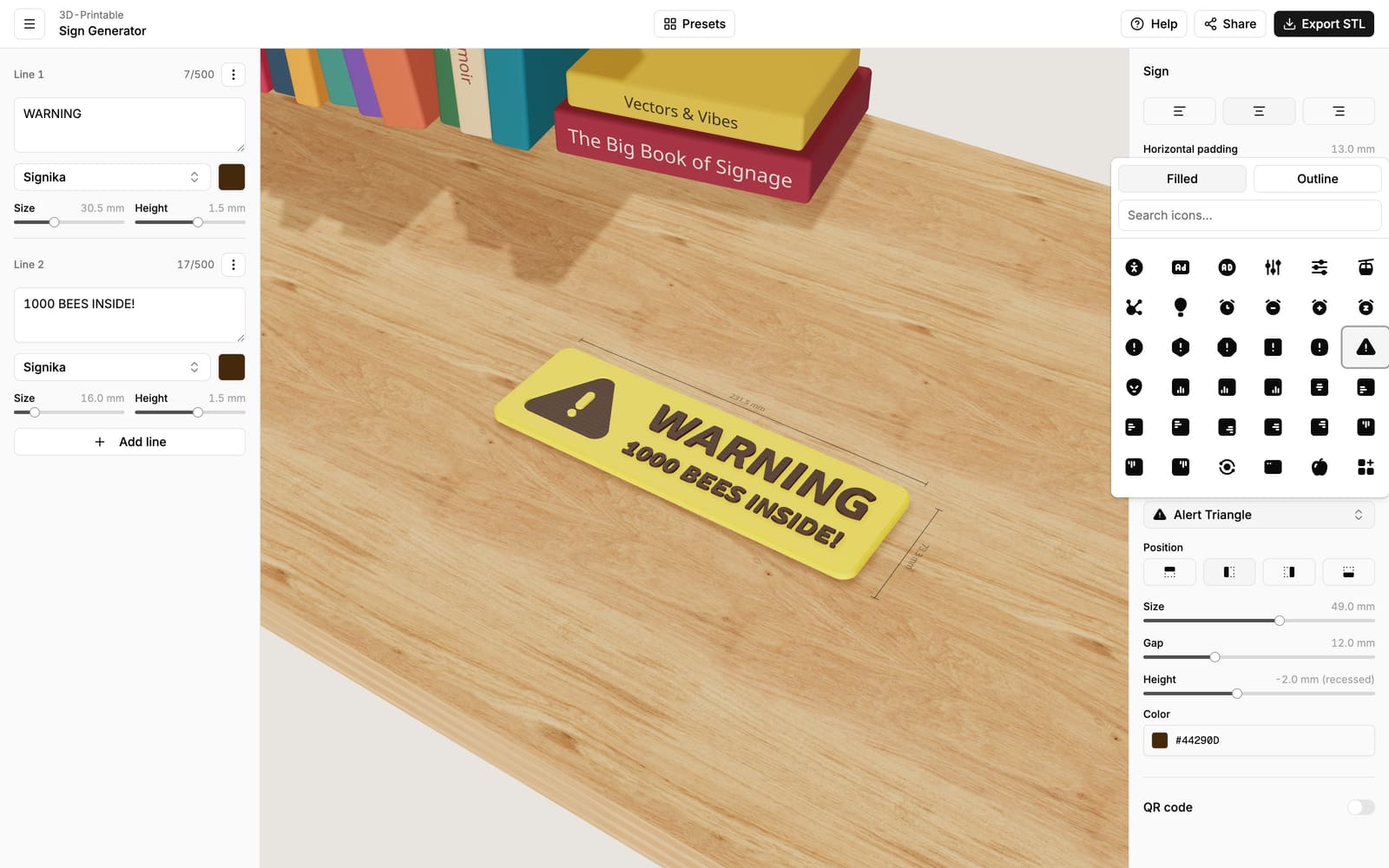
Flip the switch next to the Icon heading to add an icon, and click the icon's name to open the picker:
- Search by what the icon shows, in plain English — try "dog", "arrow" or "coffee".
- Switch between the Filled and Outline styles with the buttons at the top. Filled icons are solid shapes; outline icons are drawn with lines, like the recycling symbol on a bin.
There are over 1,000 filled and over 5,000 outline icons.
Placing and sizing
- Position — whether the icon sits above, below, left or right of your text.
- Size — the icon's height in millimeters; the width follows automatically.
- Gap — the distance between the icon and the text.
- Height — raise the icon out of the sign or engrave it into the surface, just like text. See Raised & recessed elements.
- Color — the icon prints in its own color, independent of the text and background.
Outline icons can't be engraved
Because outline icons are built from thin strokes, they can only sit flush with the surface or be raised above it. If you want an engraved (recessed) icon, use the filled style — most icons exist in both.
Thin lines need a little size
Outline icons are drawn with thin lines that the printer reproduces with a 0.4 mm nozzle. If an outline icon looks delicate, make it a bit bigger — the strokes thicken along with it.