QR codes
Put a scannable QR code on your sign — for a website, your Wi-Fi, and more.
A QR code turns your sign into something people can do something with: scan it with a phone to open a website, join your Wi-Fi, start an email or call a number. The QR code section in the right panel adds a code to the front of your sign.
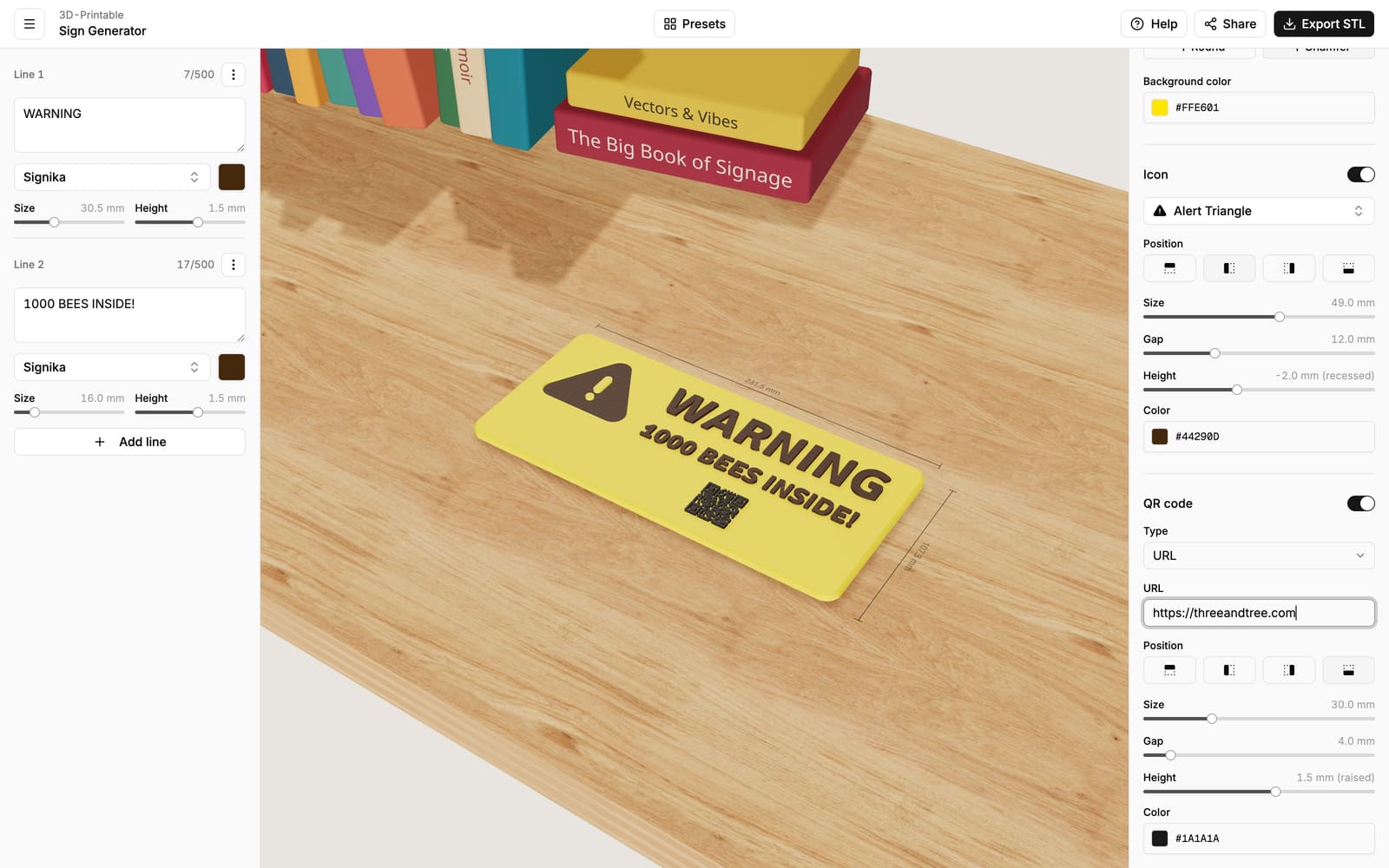
Adding a QR code
Flip the switch next to the QR code heading, then choose what the code should do under Type:
- URL — opens a web page. Enter the full address, e.g.
https://example.com. - Wi-Fi — offers to join your Wi-Fi network. Enter the network name, the password and the network's security type (for most home networks that's WPA/WPA2). Perfect for a guest-room sign.
- Text — shows a piece of text when scanned. Keep it short; long text makes the code harder to scan.
- Email — starts a new email to the address you enter.
- Phone — starts a call to the number you enter.
The code in the 3D preview is the real, working code — it updates as you type.
Test it before you print
Zoom in on the preview and scan the code straight off your screen with your phone. If it scans from the screen, it will scan from the print.
Placing and sizing
The remaining controls work like the icon's: Position (above, below, left or right of the text), Size, Gap, Height (raised, flush or recessed — see Raised & recessed elements) and Color.
A few things help a printed code scan reliably:
- Make it big enough. Codes smaller than about 20 mm are hard for phones to read, especially codes that contain a lot of text. When in doubt, go bigger.
- Keep the contrast strong. A dark code on a light sign (or the reverse) scans best. Avoid color combinations that look similar in brightness, like yellow on white.
- Shorter content = simpler code. The more text the code contains, the finer its pattern becomes. Short addresses produce chunkier, more reliable codes.
Anyone can scan it
A QR code isn't encrypted — anyone who scans a Wi-Fi code can read the network name and password it contains. That's the point of a guest sign, but it's worth keeping in mind before you hang one in a public space.
The other QR code: on the back
Separately from this front-facing QR code, the export screen offers a small QR code on back. That one isn't part of your design — scanning it reopens the sign in the editor, so you (or whoever finds the sign) can edit and reprint it later. See Exporting.