Size & units
Set the width, length and height of your box, and switch between millimeters and inches.
The Dimensions section sets how big your box is.
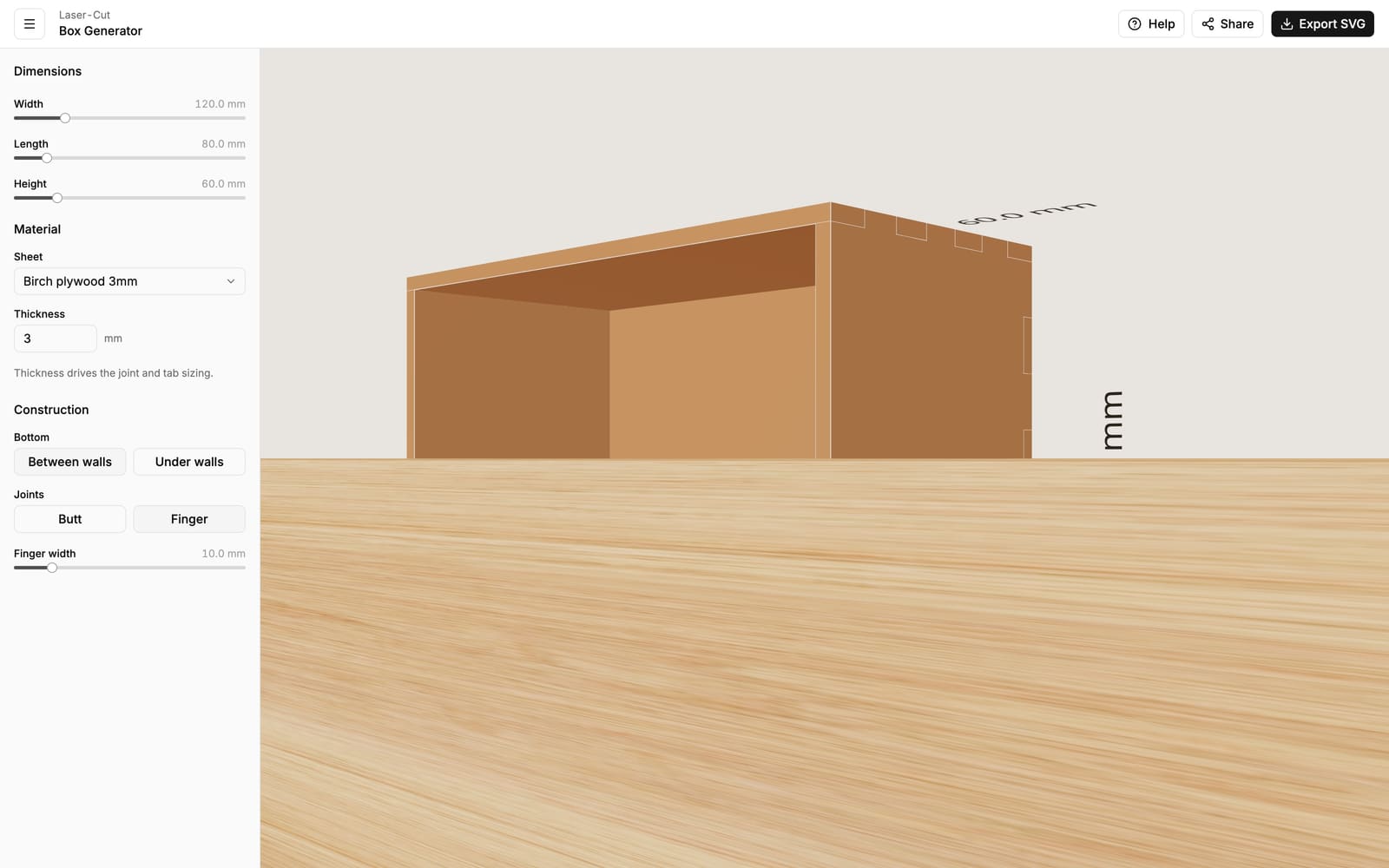
Width, length and height
Drag the three sliders to set the box's size:
- Width and Length — the footprint of the box, 20–500 mm each.
- Height — how tall the walls are, 10–300 mm.
The preview resizes as you drag, and the faint labels in the scene show the current measurements.
These are outside measurements
Width, length and height describe the outer size of the assembled box — the space it takes up on a shelf. The usable space inside is smaller by the wall thickness on each side. For a 3 mm material, the inside is about 6 mm narrower and shorter than the outside. If you're building the box to fit something exactly, add two thicknesses to your object's size.
Will it fit on my cutter?
A box is cut as five flat panels — four walls and a bottom — not as the assembled shape. The biggest single panel is roughly your largest two dimensions side by side. As a quick check, make sure your largest wall (for example width × height) fits inside your laser's bed, with a little room to spare. The exported sheet lays all the panels out together so you can see the total area you'll need.
Millimeters or inches
Everything is stored in millimeters, but you can display inches instead. Open the menu at the top left and choose Units → Imperial (in). This only changes how measurements are shown — your box is unchanged, and the exported files are always at true physical size.