Getting started
Design and export your first laser-cut box, step by step.
This guide takes you from a blank page to a box that's ready to cut. It should take about five minutes.
1. Open the editor
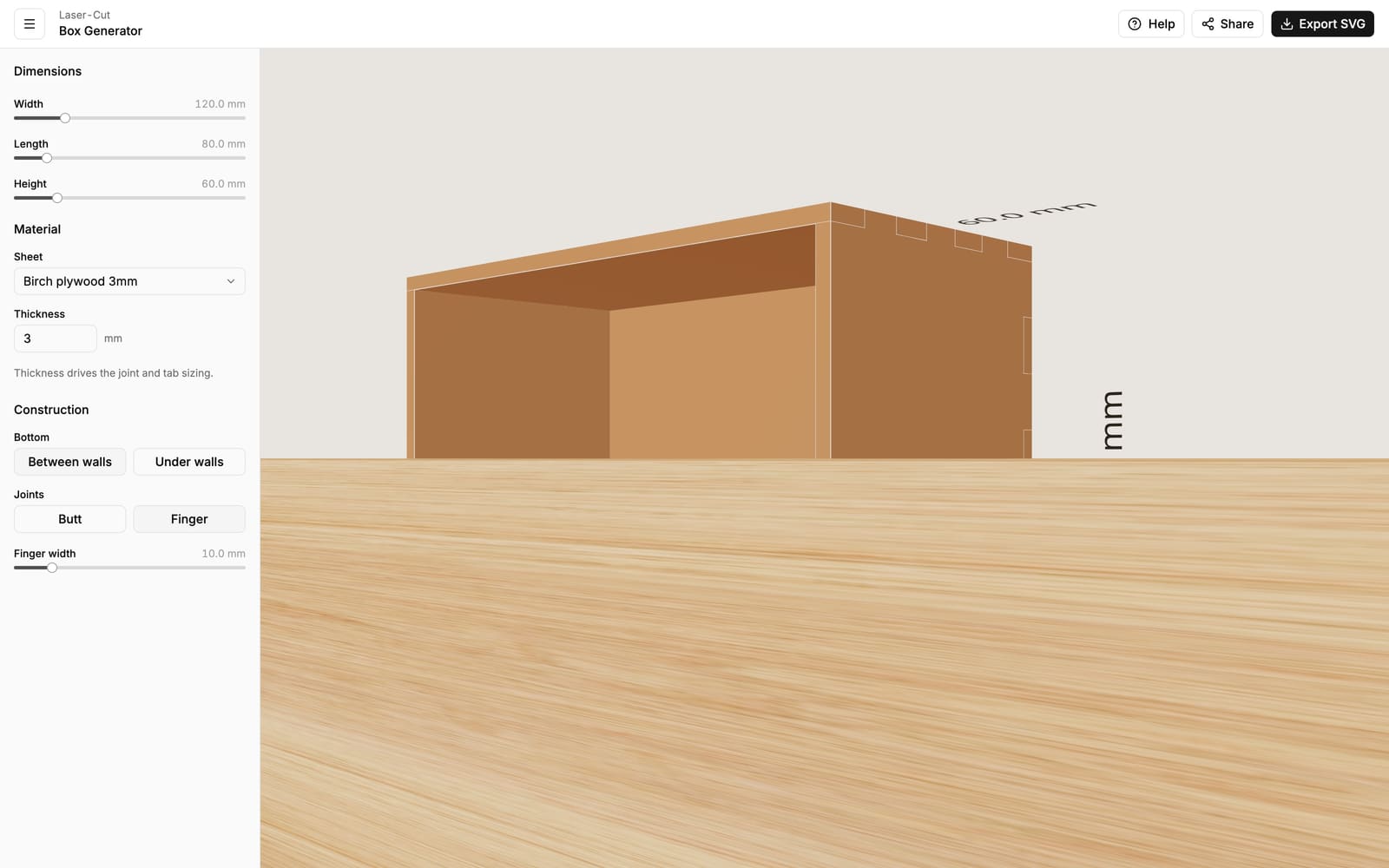
Head to the Box Generator. You'll start with a default box — a small finger-jointed tray — that you can reshape into whatever you need.
Nothing you do is final
Every setting can be changed at any time, and the preview updates instantly. Feel free to experiment.
2. Find your way around
The editor has two areas:
- The settings panel on the left, with three sections: Dimensions, Material and Construction.
- The 3D preview on the right shows the assembled box. Drag to rotate, scroll (or pinch) to zoom, and drag with the right mouse button to move sideways. Every panel edge is outlined so you can see how the parts overlap and how the joints interlock.
3. Set the size
Under Dimensions, drag the Width, Length and Height sliders. These are the outside measurements of the finished box. The preview resizes as you go. See Size & units for the details, including switching to inches.
4. Choose your material
Under Material, pick the sheet you'll actually cut from — for example Birch plywood 3 mm. This sets the thickness the joints are built around. If your sheet isn't in the list, choose Custom thickness and type the real measured value. This step matters: the box only fits together if the thickness is right. See Material & thickness.
5. Pick how it goes together
Under Construction:
- Bottom — sit the base Between walls or Under walls. See Bottom placement.
- Joints — choose Butt (plain edges you glue) or Finger (interlocking tabs that snap together). With finger joints you also get a Finger width slider. See Joints.
6. Export and cut
Click Export SVG at the top right, then Download SVG (.zip). You'll get a ZIP containing one combined sheet with all the panels laid out for cutting, plus one file per panel.
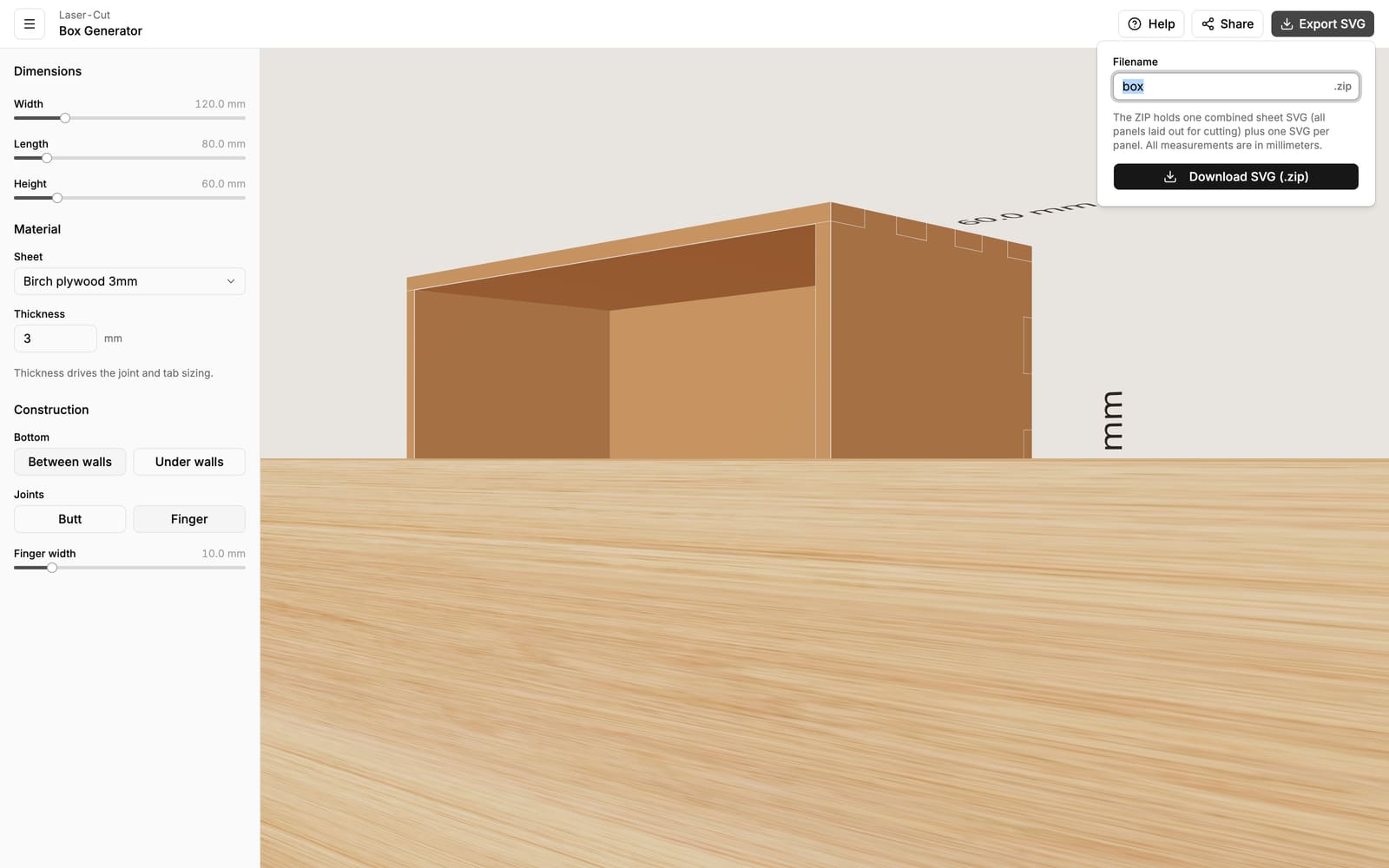
Open the sheet in your laser-cutter software, confirm it imported at the right size (everything is in millimeters), and cut. The full walkthrough is in Exporting & cutting.
Don't lose your work
Your design is saved in the page's web address as you edit. To keep a box or come back to it later, copy the link with the Share button — or just bookmark the page.