Material & thickness
Pick a laser-cutting sheet or enter your own thickness — and why getting it right matters.
The Material section tells the generator what you're cutting from. This is the most important setting to get right, because the joints, tabs and slots are all built around the thickness of your sheet.
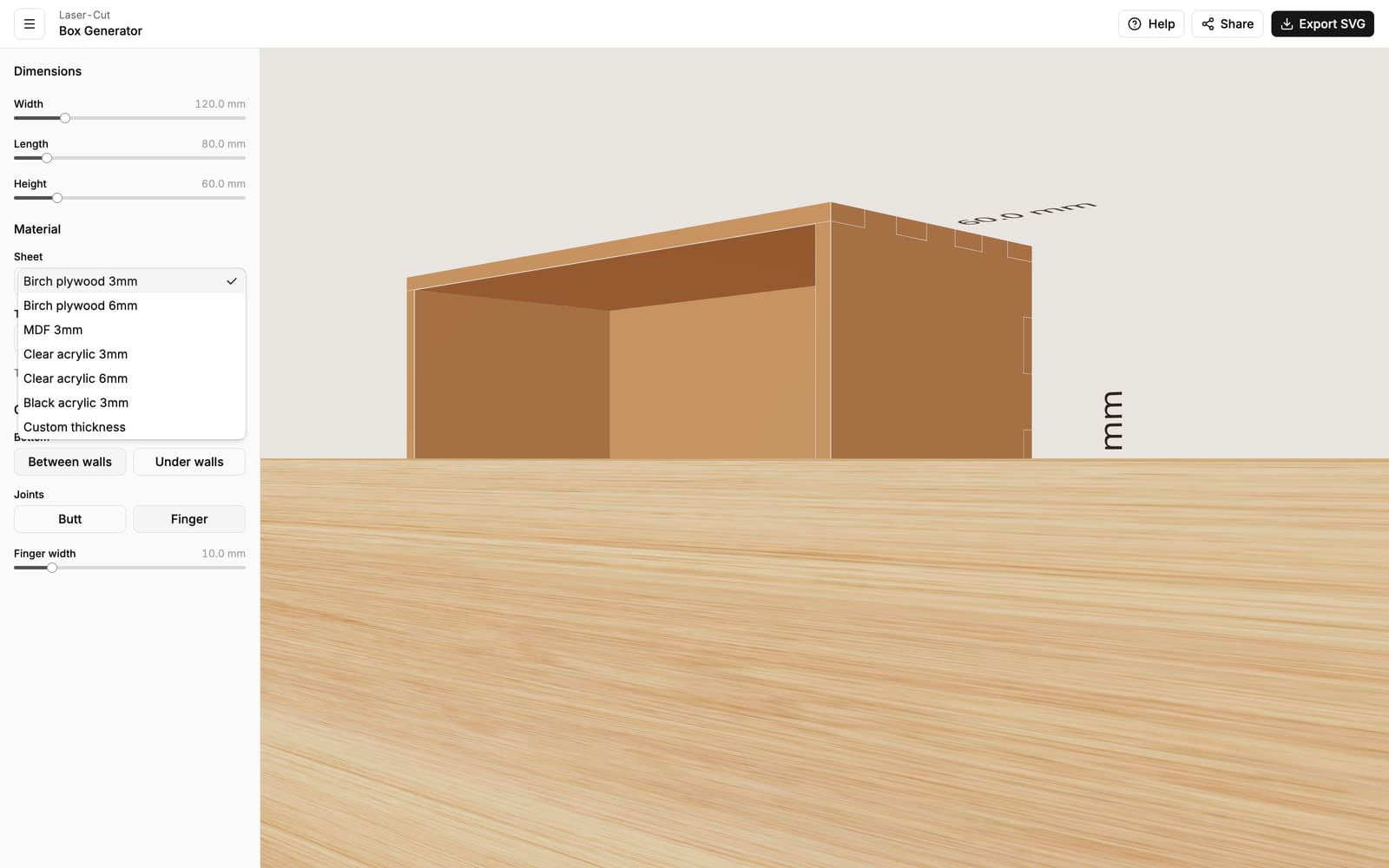
Choosing a sheet
The Sheet dropdown lists common laser-cutting materials:
- Birch plywood — 3 mm and 6 mm
- MDF — 3 mm
- Clear acrylic — 3 mm and 6 mm
- Black acrylic — 3 mm
Picking one sets the thickness for you and tints the preview so you can get a feel for the finished look. Wood materials are shown in a plain brown; acrylics are shown clear or black.
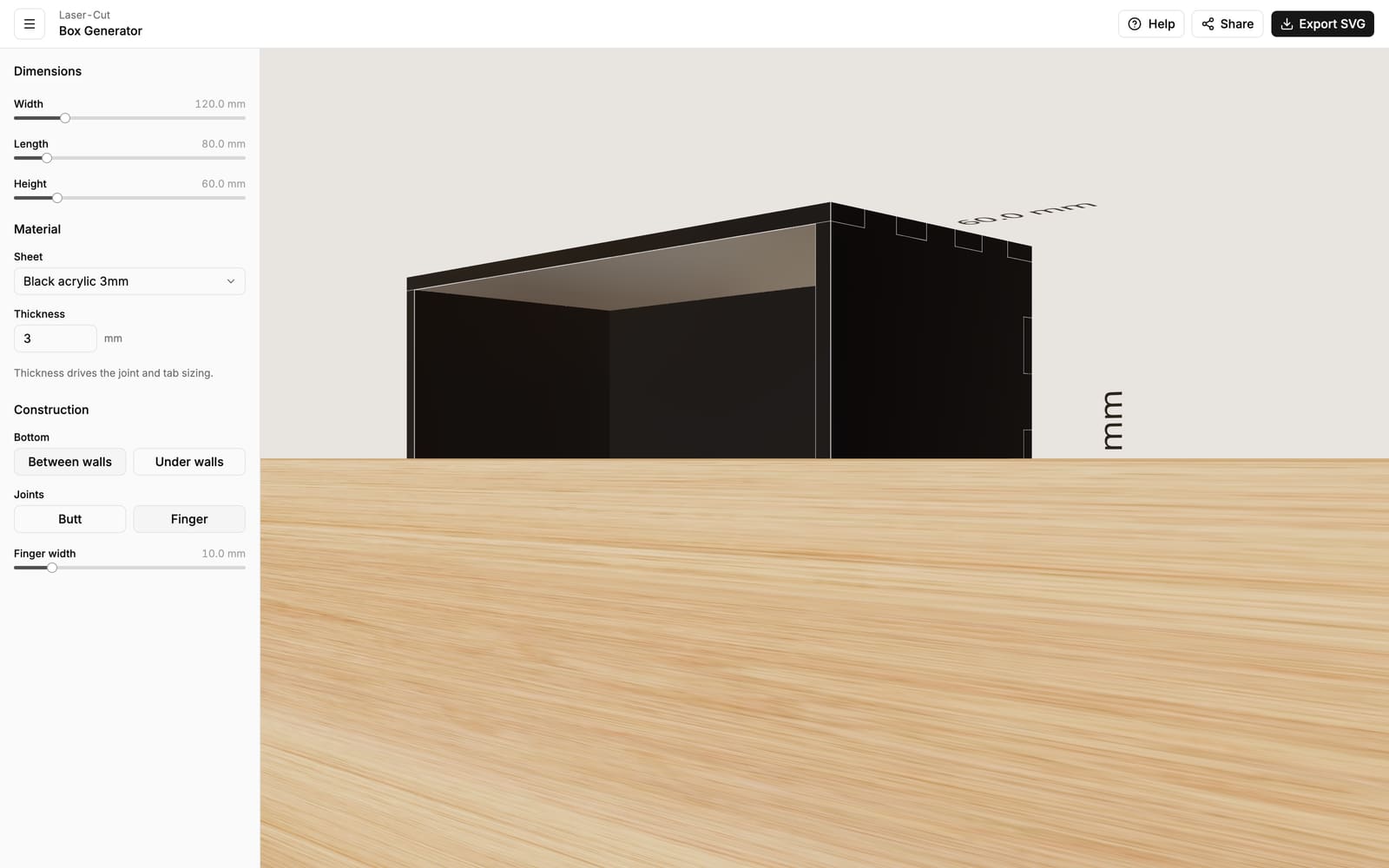
Custom thickness
If your sheet isn't in the list — or you want to be exact — choose Custom thickness and type the value into the Thickness box (1–20 mm). Editing the thickness directly switches the dropdown to Custom automatically.
Measure your real material
Sheet thicknesses are nominal. A sheet sold as "3 mm" plywood is often anywhere from 2.7 to 3.2 mm, and that difference is exactly the gap a finger joint relies on. For a snug fit, measure your actual sheet with calipers and enter the real number as a custom thickness. When in doubt, cut a small test piece first.
Why thickness drives everything
The thickness decides:
- How deep the finger joints and tabs are — they reach exactly through the mating panel so the outside faces sit flush.
- How the bottom fits — a base set between the walls is inset by one thickness on each side; a base under the walls carries the wall on top of it.
Because of this, the thickness in the app must match the sheet on your cutter. If it's off, finger joints come out too tight or too loose and the bottom won't sit flush. See Joints and Bottom placement for how each one uses the thickness.